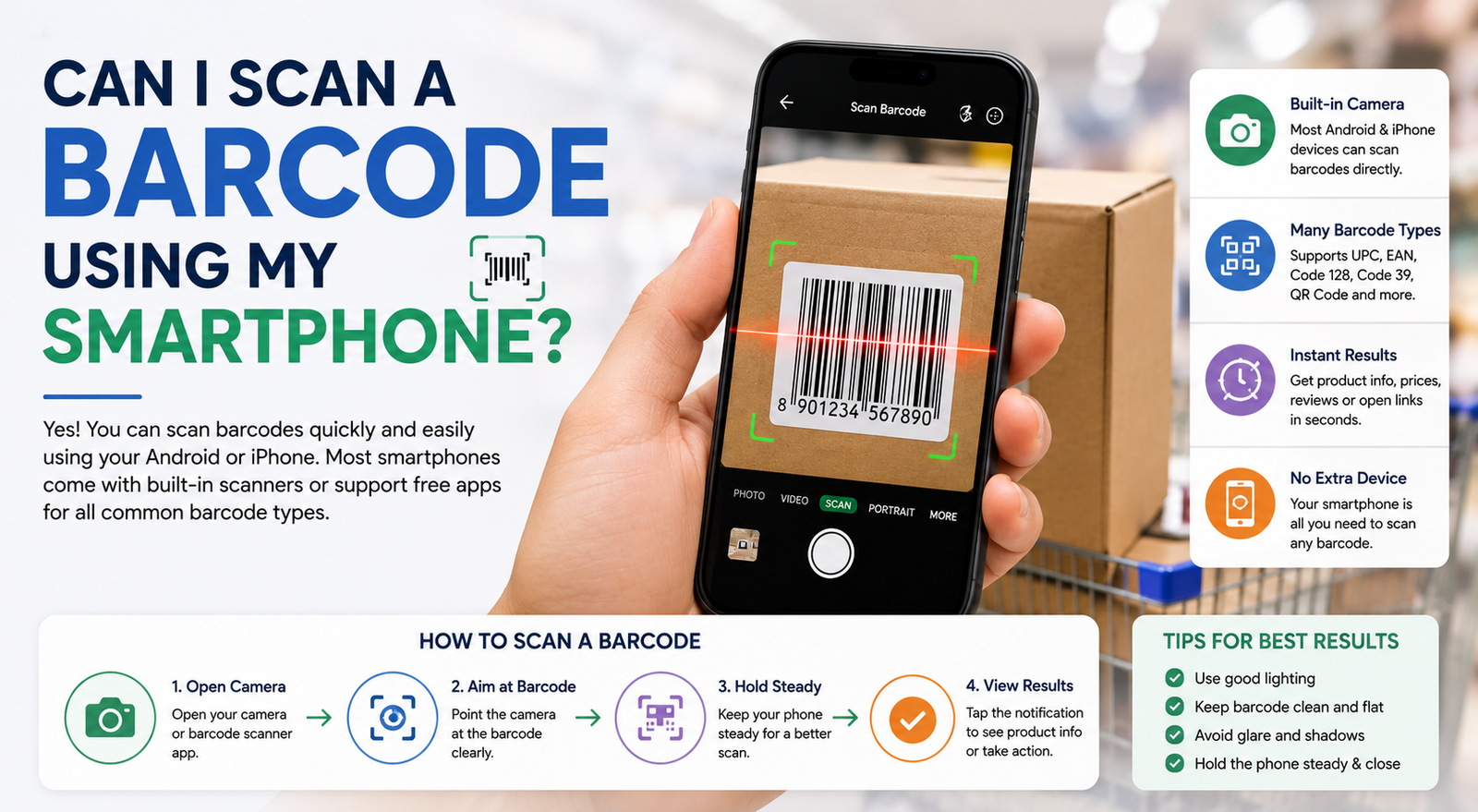
Learn how to scan a barcode using your smartphone. Discover how Android and iPhone barcode scanning works, supported barcode types, common issues, and simple fixes.
Yes, you can. If you own a modern smartphone, you already have one of the most useful barcode scanners available. Whether you use Android or iPhone, scanning a barcode usually takes only a few seconds. You point your camera at the code, wait for your phone to recognize it, and you're done.
People use barcode scanning every day without thinking much about it. You might scan a product to compare prices, check a parcel, add an item to inventory, or look up product information while shopping.
So how does your phone read those black lines? And why do some barcodes scan instantly while others refuse to work?
Let's look at how barcode scanning works and how you can get the best results.
What is a barcode?
A barcode is a machine-readable code made of black bars and white spaces.
Each pattern represents numbers, letters, or both. When a scanner reads those patterns, it converts them into digital information that a computer or smartphone can understand.
Most retail products have a barcode printed on the packaging. Warehouses, hospitals, libraries, and shipping companies also rely on barcodes because they make tracking items fast and accurate.
Can every smartphone scan barcodes?
Almost every smartphone released during the last several years can scan common barcode formats.
Android phones often use the built-in Camera app or Google Lens. iPhones include barcode scanning directly in the Camera app.
Older devices may require a barcode scanner app, especially if the camera software doesn't recognize barcodes automatically.
How does a smartphone scan a barcode?
The process is surprisingly simple.
First, your camera captures an image of the barcode.
The software then looks for the familiar pattern of black and white lines. Once it detects the pattern, it decodes the information stored inside the barcode.
If the barcode contains a product number, the app may search an online database for product details. If it stores text or another type of information, the app displays it immediately.
The entire process often finishes in less than one second.
How to scan a barcode on Android
Most Android phones include barcode scanning through Google Lens.
Follow these steps:
- Open the Camera app.
- Point the camera at the barcode.
- Keep the barcode inside the frame.
- Wait for the phone to recognize it.
- Tap the notification that appears.
If your Camera app doesn't recognize the barcode, open Google Lens and scan it there.
Many manufacturers also include barcode scanning inside their own camera software.
How to scan a barcode on iPhone
Apple makes barcode scanning simple.
Open the Camera app and point it toward the barcode.
Keep your phone steady for a moment. When the barcode is recognized, a notification appears at the top of the screen.
Tap the notification to view the information.
If nothing appears, check your lighting and clean the camera lens before trying again.
Do I need a barcode scanner app?
For most people, no.
The built-in camera handles everyday barcode scanning without any extra software.
A dedicated barcode scanner app becomes useful if you:
- Scan hundreds of products each day.
- Manage warehouse inventory.
- Export scan history.
- Create reports.
- Need support for many barcode formats.
- Want offline inventory tracking.
Businesses often choose professional scanner apps because they include features designed for inventory management.
What barcode formats can smartphones read?
Most smartphones support several popular barcode types.
UPC
UPC barcodes appear on retail products in North America.
They identify products at supermarket and retail checkout counters.
EAN-13
EAN-13 is one of the most common barcode formats worldwide.
Many products sold internationally use this barcode.
Code 128
Code 128 stores letters, numbers, and symbols.
Shipping companies and warehouses use it because it can hold more information than many retail barcode formats.
Code 39
Code 39 appears in manufacturing, automotive industries, and inventory systems.
It supports both letters and numbers.
ITF
Interleaved 2 of 5, often called ITF, is common on shipping cartons and warehouse packaging.
Codabar
Hospitals, blood banks, and libraries have used Codabar for many years.
QR Code
Although technically different from traditional barcodes, smartphones can scan QR codes just as easily.
QR codes hold much more information than standard one-dimensional barcodes.
Where can you use barcode scanning?
Barcode scanning saves time almost everywhere.
Shopping
Many shoppers scan product barcodes before buying.
They compare prices between stores, read customer reviews, and check product specifications.
Inventory management
Businesses scan products when they arrive, move between warehouses, or leave for customers.
A quick scan updates inventory automatically.
Shipping
Courier companies scan parcels several times during delivery.
Each scan updates the tracking information customers see online.
Healthcare
Hospitals use barcodes to identify medicines, patient wristbands, laboratory samples, and medical equipment.
This helps reduce manual errors.
Libraries
Books often include barcodes that allow librarians to check books in and out quickly.
Why won't my phone scan a barcode?
Most scanning problems have simple causes.
Poor lighting
Dark rooms make barcode scanning difficult.
Move closer to a light source or turn on your phone's flashlight.
Blurry barcode
A blurry print gives the scanner less detail to read.
Use a clean, high-quality barcode whenever possible.
Small barcode
Tiny barcodes are difficult for cameras to recognize.
Move closer until the barcode fills more of the screen.
Damaged barcode
Scratches, folds, tears, or missing sections can prevent successful scanning.
If possible, replace damaged labels.
Dirty camera lens
A fingerprint on the lens reduces image quality.
Wipe the lens gently with a microfiber cloth.
Screen glare
If you're scanning a barcode from another phone or computer monitor, reflections may interfere with detection.
Adjust the screen angle or increase brightness.
Can I scan a barcode without internet?
Yes.
Reading the barcode itself doesn't require internet access.
Internet becomes necessary only when the scanning app needs to search an online product database or open a website.
If the barcode contains plain text or a simple identification number, your phone can usually display it offline.
Can I scan a barcode from a computer screen?
Yes.
Many airlines, ticketing websites, and online stores display barcodes on screens.
Increase your monitor brightness if the barcode looks dim.
Avoid displaying the barcode at a very small size.
Can smartphones scan damaged barcodes?
Sometimes.
Minor scratches usually don't prevent scanning.
Heavy damage, faded printing, or missing bars often make the barcode unreadable.
Replacing the damaged label is usually the fastest solution.
How accurate is smartphone barcode scanning?
Modern smartphone cameras are surprisingly accurate.
As long as the barcode is clear and well printed, the success rate is very high.
Businesses scanning thousands of products every day often use dedicated laser or imaging scanners because they're faster during continuous work.
For everyday use, your smartphone performs extremely well.
Tips for faster barcode scanning
A few habits make scanning quicker.
- Hold your phone steady.
- Keep the barcode flat.
- Avoid shadows.
- Don't cover the barcode with your fingers.
- Fill most of the camera frame with the barcode.
- Clean your camera lens regularly.
- Print barcodes with good contrast.
- Replace damaged labels when possible.
Barcode scanner apps vs built-in camera
Your built-in camera works well for everyday tasks.
Barcode scanner apps add more control.
Many apps include:
- Scan history.
- Batch scanning.
- Inventory management.
- Product lookup.
- Export to Excel or CSV.
- Offline storage.
- Multiple barcode format support.
If you run a business, these extra tools can save hours every week.
Barcode scanning safety
Scanning a traditional barcode is generally safe.
Retail barcodes usually contain only product identification numbers.
QR codes deserve a little more attention because they can open websites automatically. Before entering personal information after scanning a QR code, check that the website address looks correct.
Frequently asked questions
Can I scan a barcode using my smartphone for free?
Yes. Most Android phones and iPhones include barcode scanning at no extra cost.
Which phones support barcode scanning?
Nearly all recent Android phones and iPhones support barcode scanning through the Camera app or Google Lens.
Can I scan barcodes without downloading an app?
Yes. Many smartphones recognize common barcode formats directly from the Camera app.
Why is my phone unable to scan some barcodes?
Low lighting, damaged labels, poor print quality, and very small barcodes are the most common reasons.
Can smartphones scan every barcode format?
Most common barcode formats are supported. Very specialized industrial barcodes may require professional scanning equipment.
Does barcode scanning use mobile data?
Scanning itself doesn't use mobile data. Looking up product information online or opening websites requires an internet connection.
Is barcode scanning accurate?
Yes. Modern smartphone cameras read clear barcodes with excellent accuracy.
Can I use my phone for inventory management?
Yes. Many businesses use barcode scanner apps on smartphones to manage inventory, stock counts, and warehouse operations.
Final thoughts
Your smartphone is more capable than many people realize. A device you already carry every day can scan product labels, shipping boxes, library books, tickets, and inventory tags within seconds.
Whether you're shopping, running a small business, or organizing products at home, barcode scanning saves time and reduces typing mistakes. Keep your camera lens clean, use good lighting, and make sure the barcode is clear. Those three habits solve most scanning problems before they start.